How To Schedule Tweets In 5 Steps: Write A Week Of Posts In One Sitting And Post Twice A Day
Dickie BushNovember 21, 2026
How to schedule tweets on X in 5 steps: schedule one post in the app, then write a week of tweets in one sitting and queue them to go out twice a day.
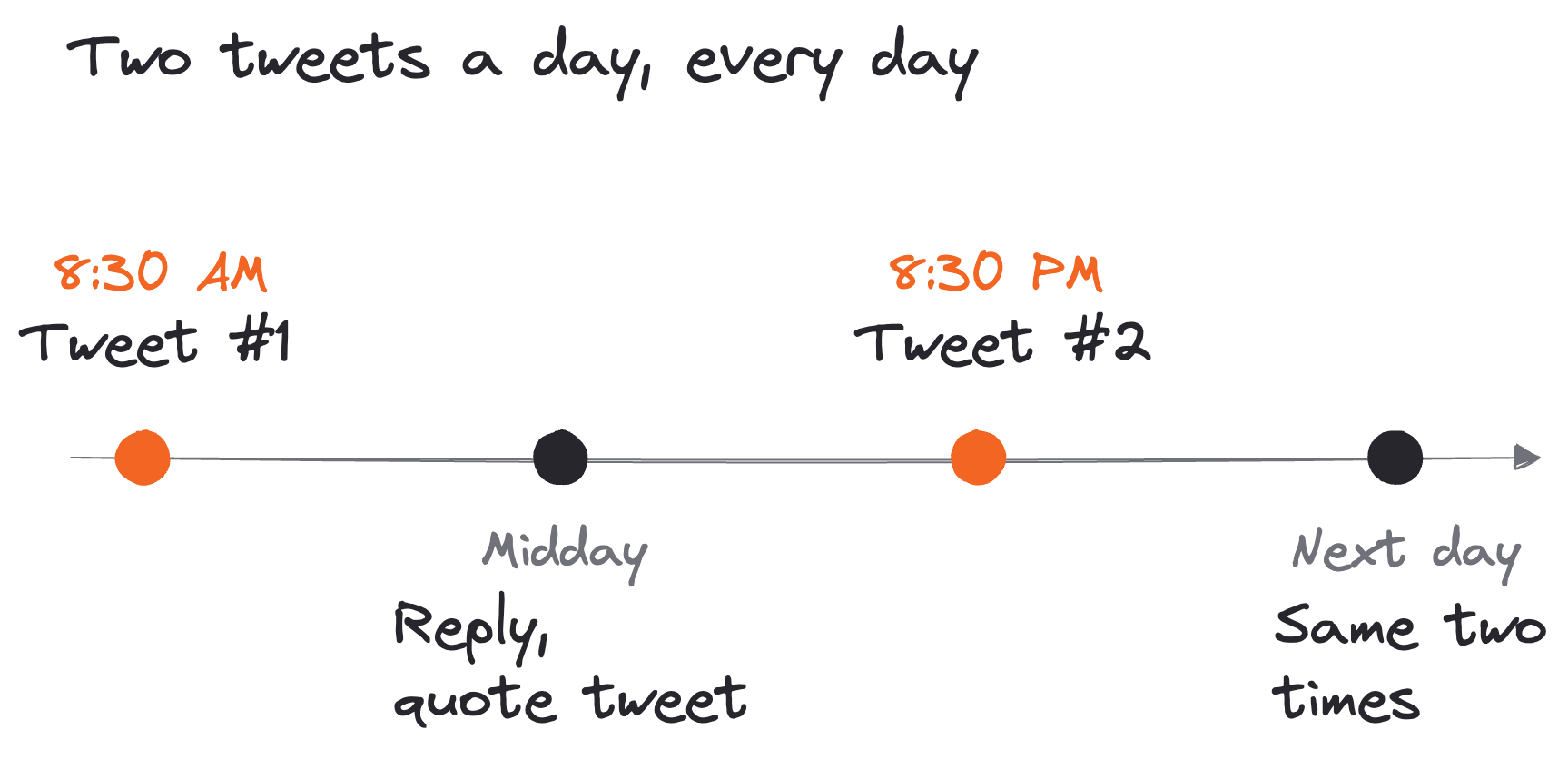
I post two tweets every day, at 8:30 AM and 8:30 PM, seven days a week.
That cadence is in the breakdown of everything I publish each week, and the tweets sit at the bottom of all of it. They're how I test ideas. A tweet that lands becomes an Atomic Essay, the longer version with more context and nuance. So if the two tweets stop, everything stacked on them slows down.
Here's the thing: I almost never write those tweets at 8:30.
I write them ahead, in one sitting, and schedule them. That habit is the difference between posting 14 times a week and posting whenever I remember. So this is how to schedule tweets the way I do it: first one post on X itself, then a full week at once. (If you want the tool I'd point you to, Typeshare's X page shows the editor and the queue. For the steps on your queue's times, see the scheduling and queue help. And if your tweets aren't getting read yet, start with how to write a hook, because a scheduled tweet still needs a first line that stops the scroll.)
Step #1: Can You Schedule Tweets? Yes, Here's How To Schedule A Tweet On X
X has a scheduler built right into the compose box.
It's easy to miss, because the button is a small calendar icon. But you don't need another app to use it, and it's the fastest way to schedule your very first tweet. Open the compose box, write the tweet, pick a date and a time, and you're done.
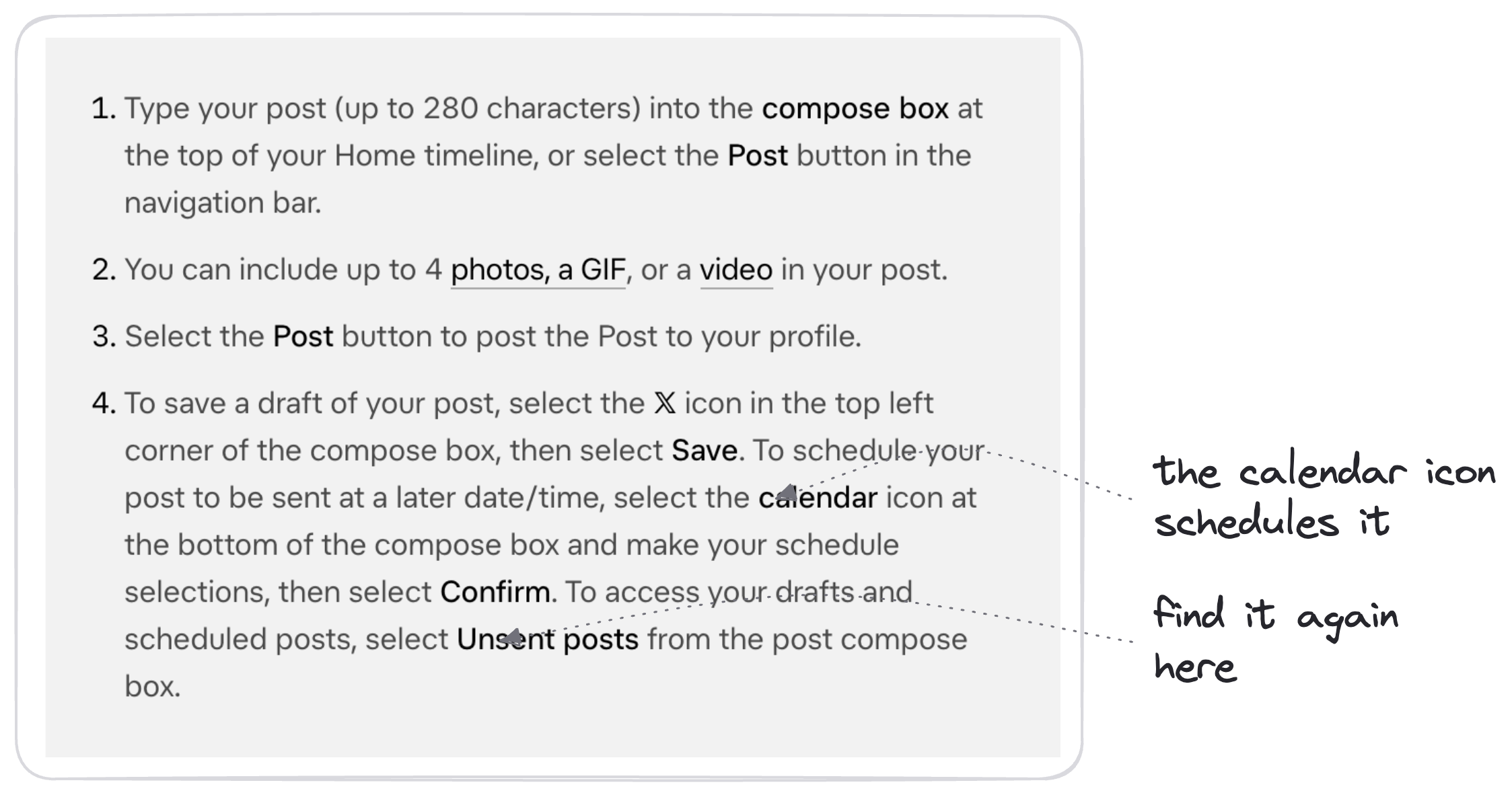
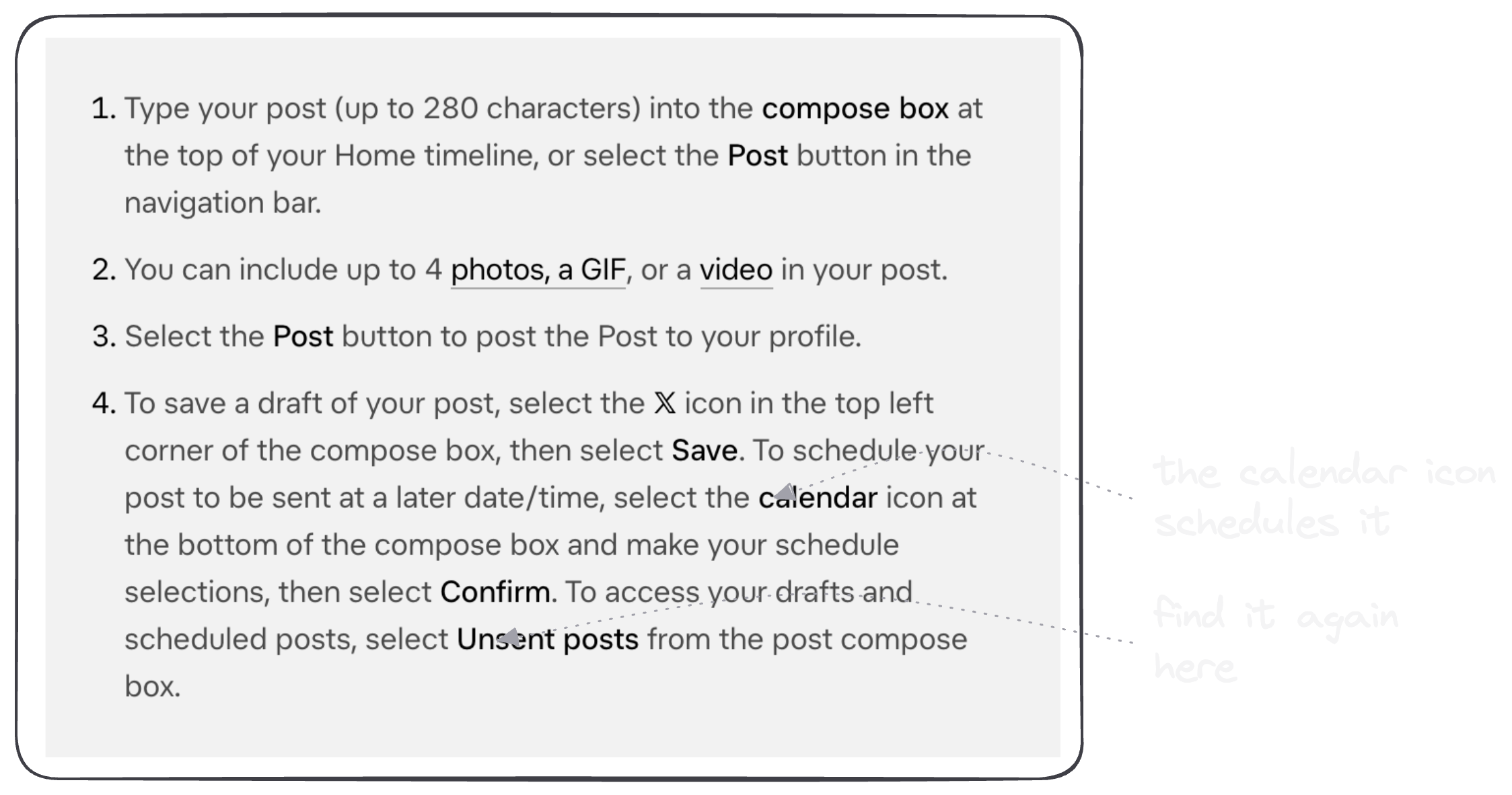
Here's how X's own help center describes it (X Help Center, "How to Post", read November 22, 2026), in the steps for the desktop site:
- Type your post into the compose box at the top of your Home timeline, or select the Post button in the navigation bar.
- Select the calendar icon at the bottom of the compose box.
- Make your schedule selections: the date and the time.
- Select Confirm.
To find a scheduled post again (to change it or delete it), open the compose box and select Unsent posts. Your drafts and your scheduled posts both live there.
That's enough for one tweet. The trouble starts at fourteen.
X's calendar icon schedules the post in front of you, so a week of tweets means picking 14 dates and 14 times by hand. And if you post more than one platform (I cross-post every tweet to Substack Notes), you do it all again somewhere else. That's where the next four steps come in.
So yes, you can schedule tweets, and X's calendar icon is the place to schedule your first one.
Step #2: Pick Your Times Before You Schedule Tweets
What time should a tweet go out?
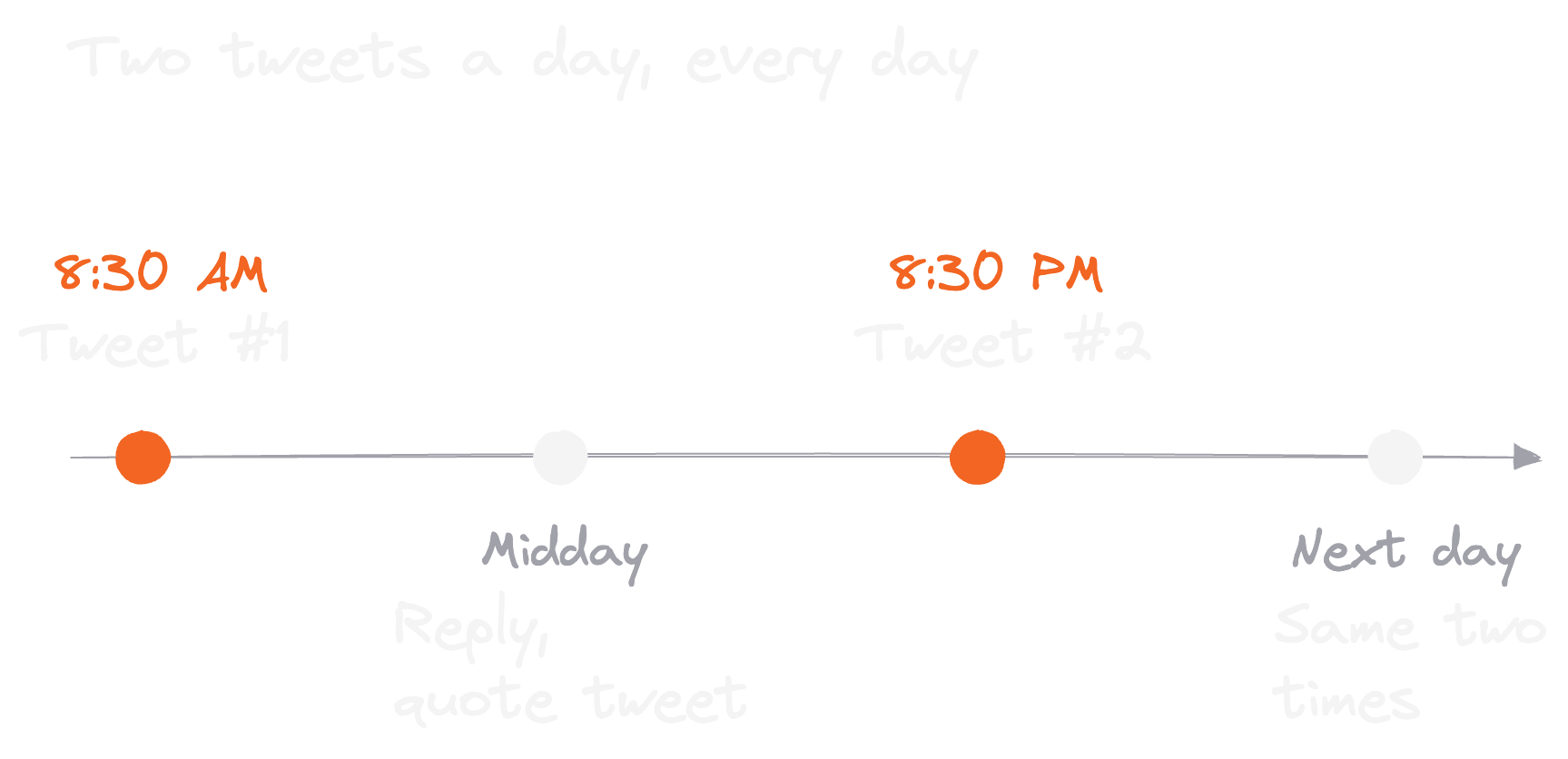
My answer is two times a day, every day: 8:30 AM and 8:30 PM Eastern. One tweet starts the day and one ends it. And because both times stay the same every day, I never have to decide again.
I've changed the number over the years. At one point I posted three a day, because that looked like the sweet spot. Today it's two, and the times haven't moved.
But here's what matters more than my exact times. Cole gets asked "what time should we post this?" every day, and his answer is blunt:
"For the first six months of you creating content on the Internet, it doesn't matter."
He's posted at 9 AM, 9 PM, noon and 4 in the morning. Someone is always awake. What matters is that you post at all.
So pick your times using three rules:
- Pick two. One tweet a day is easy to skip; two is a rhythm.
- Make them the same every day. A fixed time is a habit, and a habit doesn't need willpower.
- Pick times you can check in. You'll want to answer the first replies (more on that in Step #5).
One more thing before you lock them in: time zones. Pick your times in the zone where most of your readers live. In Typeshare, every space has one time zone, set from your computer the first time you open it. Every queue time, the Schedule calendar and Schedule for later all use it. If you're travelling, your times stay put. Change it from the globe button at the top of the Schedule page and every queue moves with it.
Two times a day, every day, is a cadence you can keep for years.
Pick your times once, and every tweet you write already has a place to go.
Step #3: Write A Week Of Tweets In One Sitting
Writing one tweet at 8:29 AM is the hardest way to write a tweet.
You're staring at a blank box, the clock is running, and whatever you post is whatever came to mind first. Do that twice a day and you'll spend more time worrying about tweets than writing them.
So I flip it: I write the whole week at once.
Two tweets a day for seven days is 14 tweets. Written in one sitting, that's one focused session a week. In our Write With AI newsletter, Cole and I put it this way: expanding a batch of ideas in one go is a hack to write a lot in a short amount of time, because there's almost zero context switching. You're in the writing headspace once, and you stay there.
Here's how to run the sitting:
- Capture ideas all week. Phone notes, a whiteboard, anything. Ideas show up when you're walking or in the shower, never when you sit down to write.
- Pick 14. Go through your notes and choose the ones you'd want to read.
- Write all 14 drafts fast. One idea, one tweet. Don't edit yet.
- Edit them in one pass. Sharpen the first line of each (these hook examples help) and cut every extra word.
- Mix the formats. A list, a one-liner, a short story, an opinion. Fourteen tweets in the same shape read like a template.


Here's what a list-shaped tweet looks like, from one of my own:
If I was starting over from scratch I would:
1. Write & publish 5 tweets per day
2. Publish 2 Atomic Essays per week
3. Craft 1 high-quality thread per week
4. Block time to make 1 new friend per week
One line sets up the promise, the list delivers it, and nothing else gets in the way. Put two or three of those in your 14, and fill the rest with one-liners, opinions and short stories.
One more thing that helps: write in the same place every week, at the same time. For me that has always been first thing in the morning.
Write a week of tweets in one sitting, and you never face the blank box at 8:29 again.
Step #4: Schedule Your Tweets Into A Queue
Fourteen tweets and two times a day still leaves one job: putting each tweet in its slot.
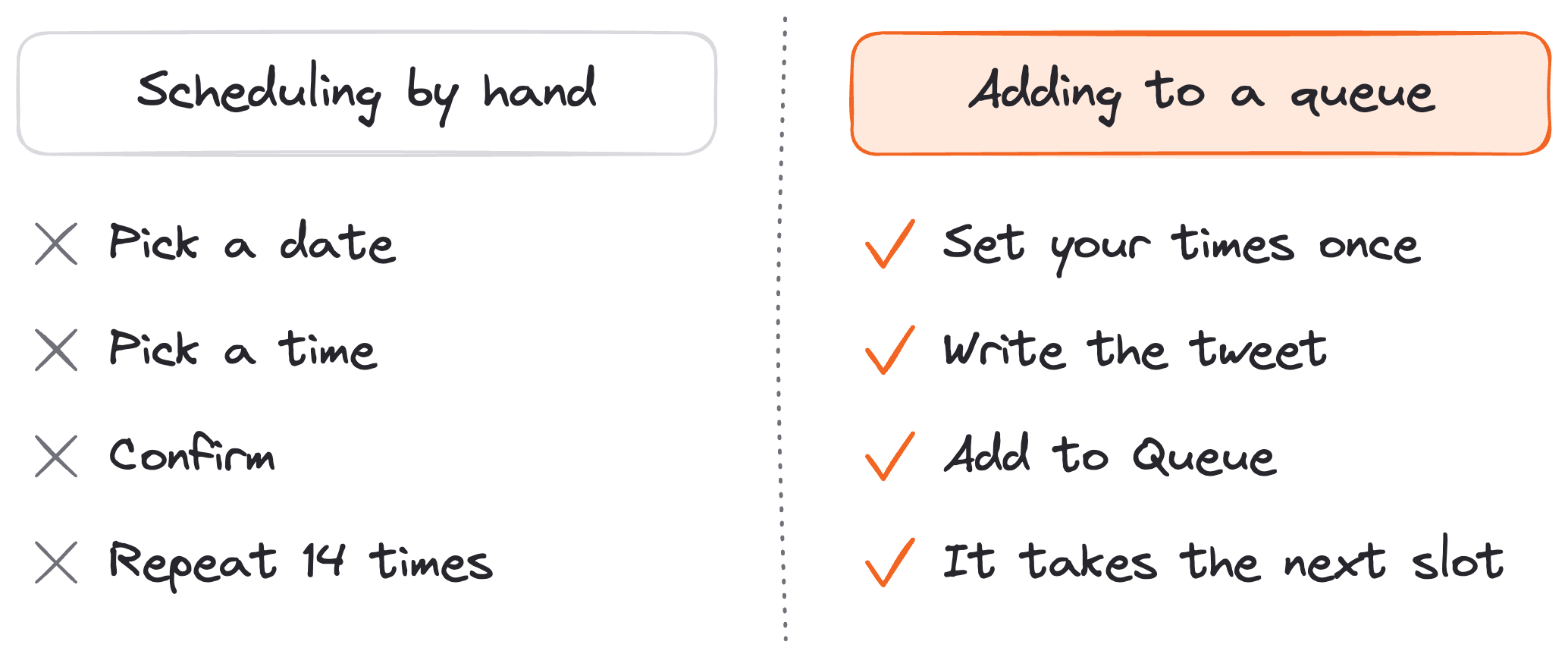
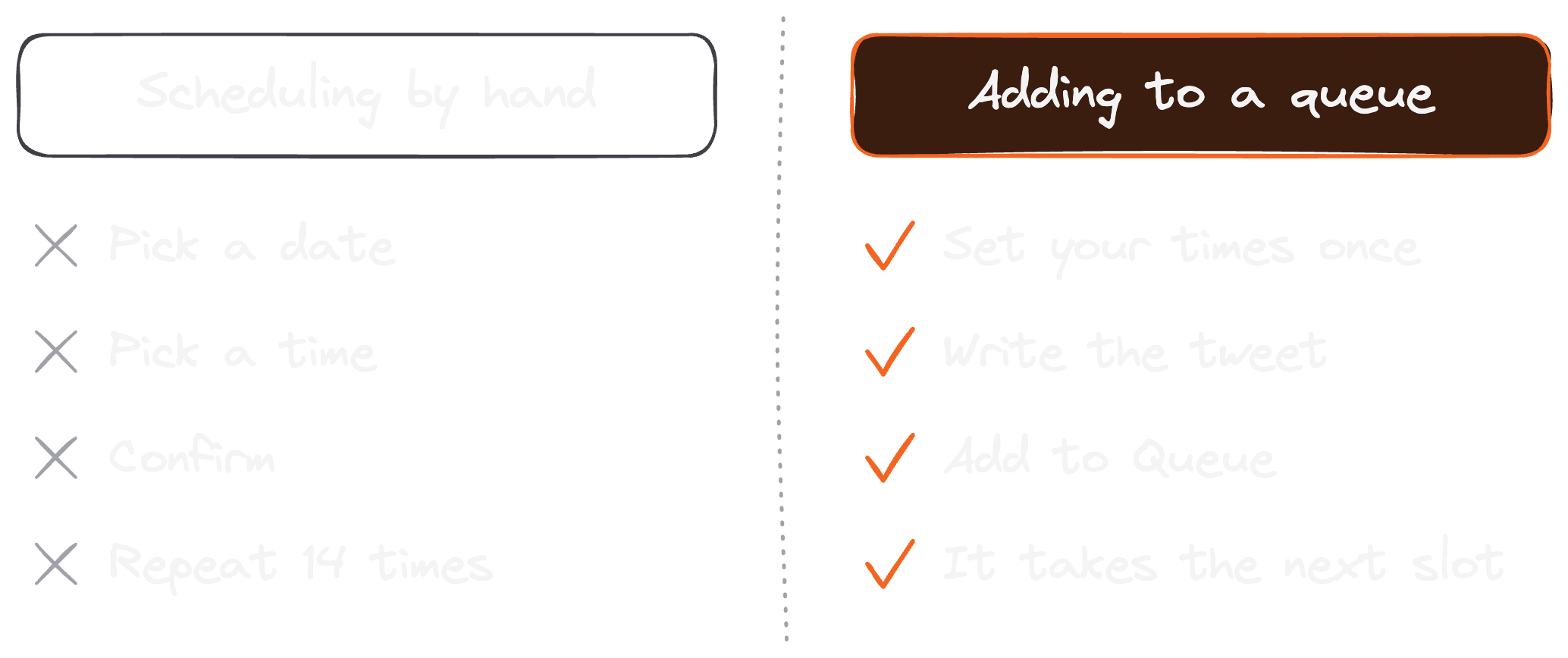
You can do that with X's calendar icon, 14 times. Or you can schedule your tweets into a queue: a set of times you choose once, which every new tweet fills in order. That's what Typeshare does, and it's the step that turns "a week of drafts" into "a week of posts."
Here's how it works in Typeshare (the scheduling help has every button):
- Set your times once. On the Schedule page, click Edit times and add your slots, like 8:30 AM and 8:30 PM, on the days you post. Or start from a preset (Beginner, Pro or Expert) and change it.
- Write the tweet in the editor. Each tweet shows its character count as you go.
- Click Add to Queue. The tweet takes the next open slot in your X queue. No date picker, no time picker.
- Repeat 13 more times. Each tweet drops into the next slot, so your week fills in order.
- Check the calendar. The Schedule page shows the whole week, with every tweet at its time.
A few details make the queue feel less like a robot:
- Natural times. Each slot goes out up to 30 minutes either side of its set time, at a different minute each day, so your tweets don't look scheduled. Turn it off for a slot if you want the exact minute.
- Times that are yours. Set a slot's Who to You and your agents never fill it; Add to Queue puts your own posts there.
- One post, several platforms. Switch on Threads, Bluesky or Substack Notes too, and the same post goes out to each.
And you can still pick a time yourself. Schedule for later lets you choose a slot from your queue or a custom day and time, in 15-minute steps.
Schedule your tweets into a queue, and the week runs itself while you get on with your day.
Step #5: Schedule Threads, Then Stay Around For The Replies
A scheduled tweet still needs you when it goes out.
That sounds like a contradiction, but it's the part most people skip. Scheduling takes the writing out of the moment you post. The conversation still happens live. When I listed how I post on X, one line was about the replies: I respond personally to the first 3 to 5 real comments on every post, to keep the conversation going under it.
So plan for two things in this last step.
First, threads. A thread is a set of tweets that post as one chain, and it's where a tweet that worked gets room to breathe. In Typeshare's editor you write the whole thread in one place: press ⌘ Enter (Ctrl Enter on Windows) to start the next post, and each post keeps its own character count. Then click Add to Queue or Schedule for later, the same as a single tweet. You can edit a scheduled thread until it goes out (how to write and schedule X threads).
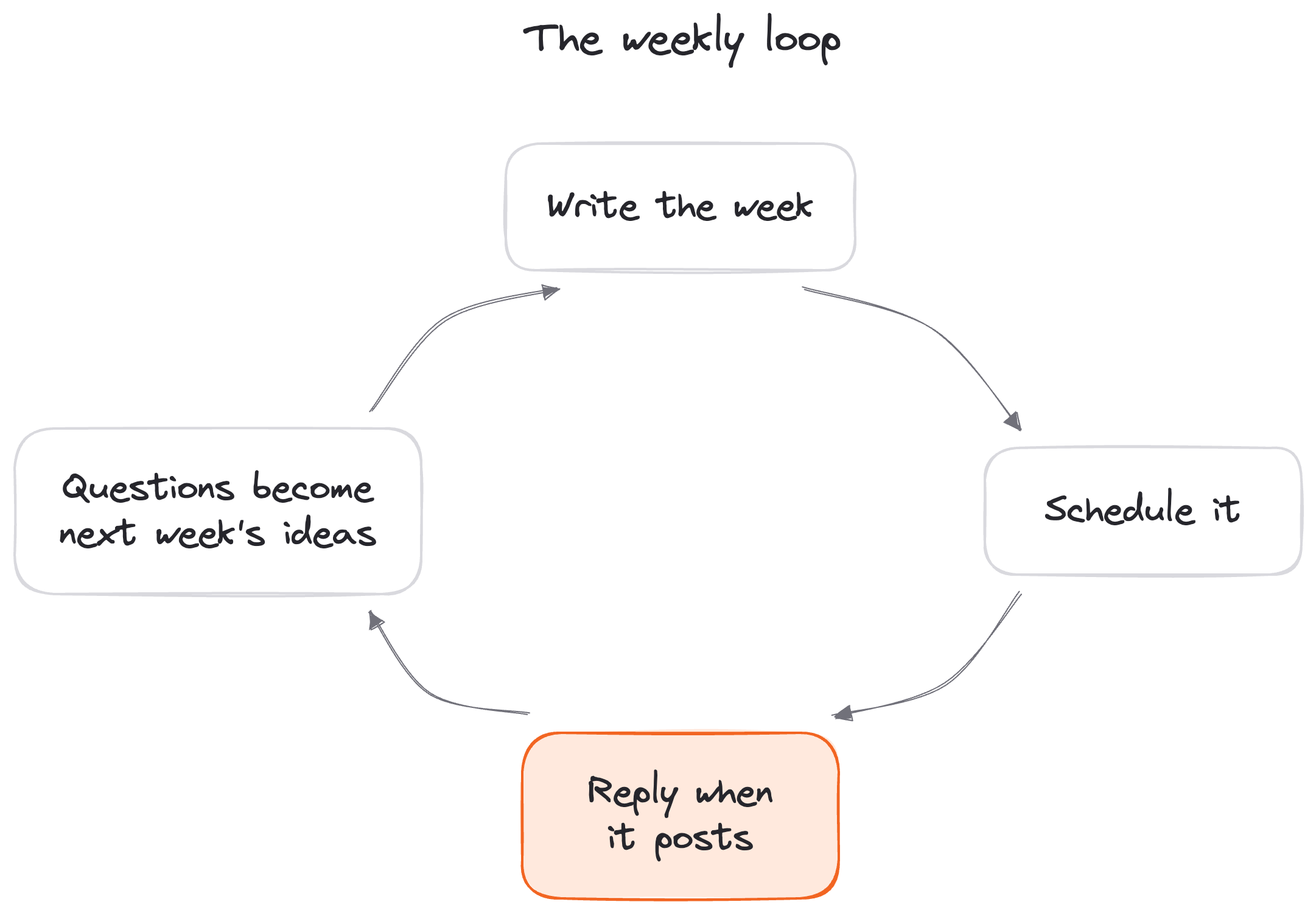
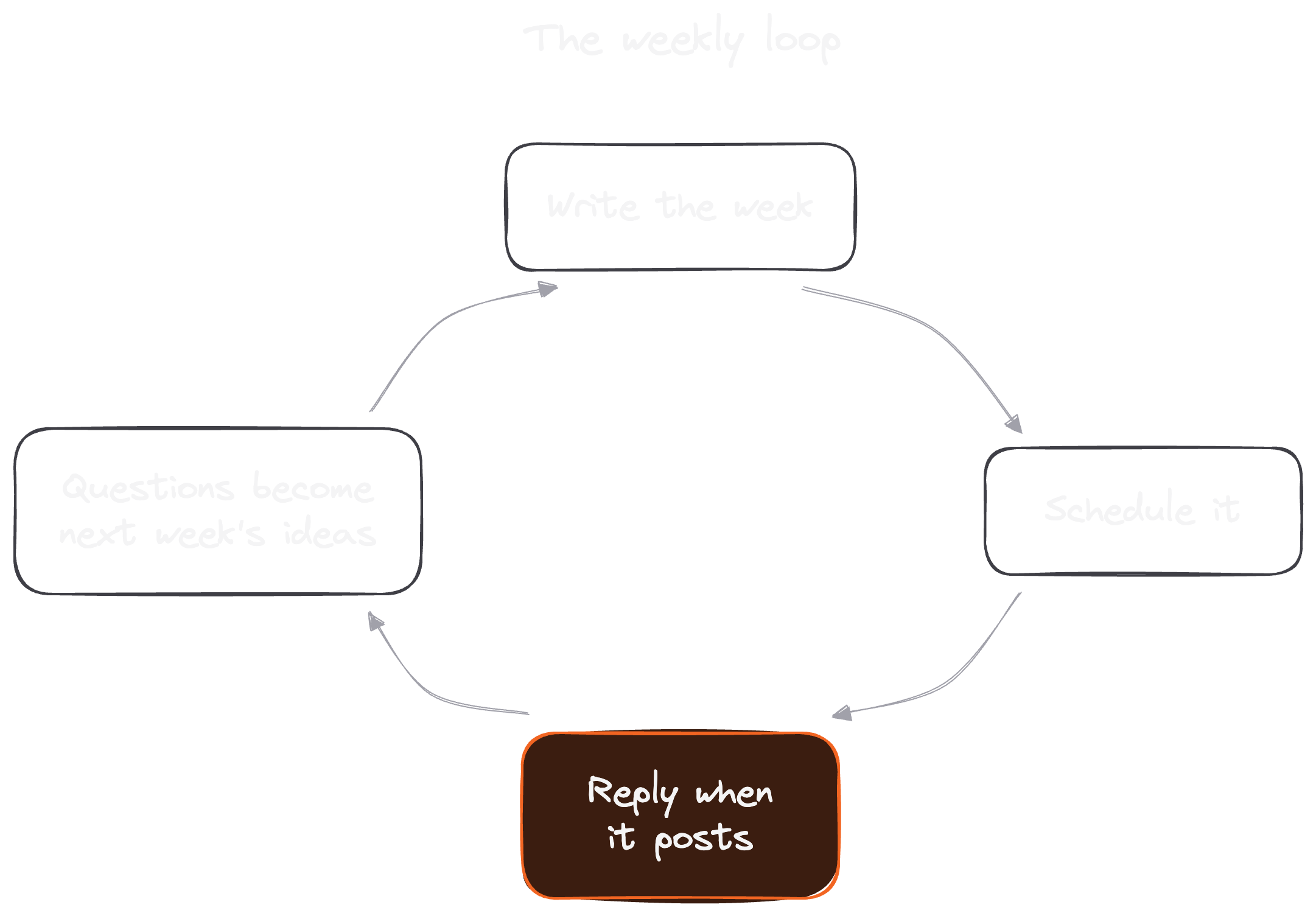
Second, the replies. Here's the routine I'd copy:
- Be there when it posts. This is why your times should be times you can check in (Step #2).
- Answer the first few real comments. Three to five is plenty. Ignore the bots.
- Note what people ask. A good question in the replies is next week's tweet.
- Leave room for the unplanned. Two scheduled tweets a day leaves space for quote tweets and off-the-cuff posts when something happens.
That last point is why I stop at two a day. The schedule carries the base. You stay free to react.
And sometimes the plan changes. News breaks, or a tweet you wrote on Sunday no longer fits Thursday. In Typeshare, drag the post to another time on the Schedule page, or open it and click Unschedule: it goes back to being a draft, and nothing is deleted. A tweet that can't wait goes out right away with Post all now.
Schedule your threads with the rest of the week, then stay around for the replies, because that's where next week's ideas come from.
FAQ
How do I edit or delete a scheduled tweet on X?
Open the compose box and select Unsent posts. X's help center says your drafts and scheduled posts are both there (X Help Center, read November 22, 2026). In Typeshare, open the post from your drafts on the Write page to edit it, up until its time. To delete one, click Unschedule, then Delete from the ··· menu.
Can you schedule tweets from your phone?
On X, the help center's steps for the calendar icon are under its desktop instructions, so the website is the reliable place to schedule. In Typeshare, the Schedule page works on a phone, and Edit times shows one day at a time there.
Can you schedule a thread on X?
In Typeshare, yes: write the thread, then use Add to Queue or Schedule for later like a single tweet. X's help page on scheduling describes a single post, so for a thread a scheduling tool is the safer bet.
How far ahead can you schedule tweets?
X's help page doesn't give a limit. In practice, a week is the window that works: far enough ahead that you write in one sitting, close enough that your tweets still fit what's happening. In Typeshare, Add to Queue fills your next open slots in order, so with an empty queue, 14 tweets at two a day fill the next seven days.
Do scheduled tweets get less reach than tweets posted by hand?
What gets a tweet read is the idea, the first line and the replies under it. Cole's rule for people starting out: stop focusing on when you post and give your attention to the idea, the format and the quality of what you're saying.
How many tweets should I schedule a day?
Start with two. It's what I post, it's 14 tweets a week, and it's a number you can write in one sitting. Once that's easy, you'll know if you want more.