How To Schedule LinkedIn Posts: The 2 Ways To Line Up A Full Week Of Posts In One Sitting (And Never Miss Your Morning Slot)
Dickie BushNovember 22, 2026
How to schedule LinkedIn posts on desktop, mobile and company pages, then line up a full week in one sitting so a post goes out every morning.
The hardest part of posting on LinkedIn every day is the morning.
You wake up, the day starts pulling at you, and the post you meant to write at 7 AM turns into a post you'll "write tonight." Then tonight turns into tomorrow. Miss two mornings in a row and the habit is gone.
I've built my LinkedIn audience to 155,000+ followers with one habit: write and publish 1 post per day. Our team has kept 1 long-form post a day on LinkedIn, weekends included, for 3 years now. A streak like that survives busy mornings for one reason: the post was written and scheduled before the morning started.
So here's how to schedule LinkedIn posts, in 2 ways. Way #1 is LinkedIn's own scheduler, on desktop, on mobile and on a company page. Way #2 is a queue: you set your posting times once, and every post you write drops into the next open morning. At the end, I'll show you how to line up a full week of posts in one sitting. (Before you write the week, check the LinkedIn post size specs so nothing gets cropped, and learn how to write a hook for the first line people see. When you're ready to queue them, Typeshare for LinkedIn does it for you. You do the writing; the robots do the rest.)
Can You Schedule Posts On LinkedIn? Yes, In 2 Ways
Yes, you can schedule posts on LinkedIn, and you don't need to pay for anything to do it.
LinkedIn added a scheduler to its own post composer. You write the post, click a small clock icon, pick a date and time, and LinkedIn publishes it for you. According to LinkedIn's Help Center (checked November 22, 2026), you can schedule a post anywhere from 10 minutes to 3 months ahead.
That's Way #1, and for one post it's all you need.
The trouble starts when you want to post every day. LinkedIn's scheduler asks you to pick a date and a time for every single post, by hand, one at a time. Seven posts means seven dates, seven times and seven chances to put two posts on Tuesday and none on Friday.
That's where Way #2 comes in: a queue. You decide your posting times once ("every morning at 8"), and every post you write takes the next open slot. Here's how the 2 ways compare:
- LinkedIn's scheduler: free and built in. You pick a date and time for each post, it works on your profile and on company pages, and it only covers LinkedIn.
- A queue: you set your times once, and posts fill the next open slot in order. Move one and the rest stay put. A tool like Typeshare runs the same queue for X, Threads and Substack too.
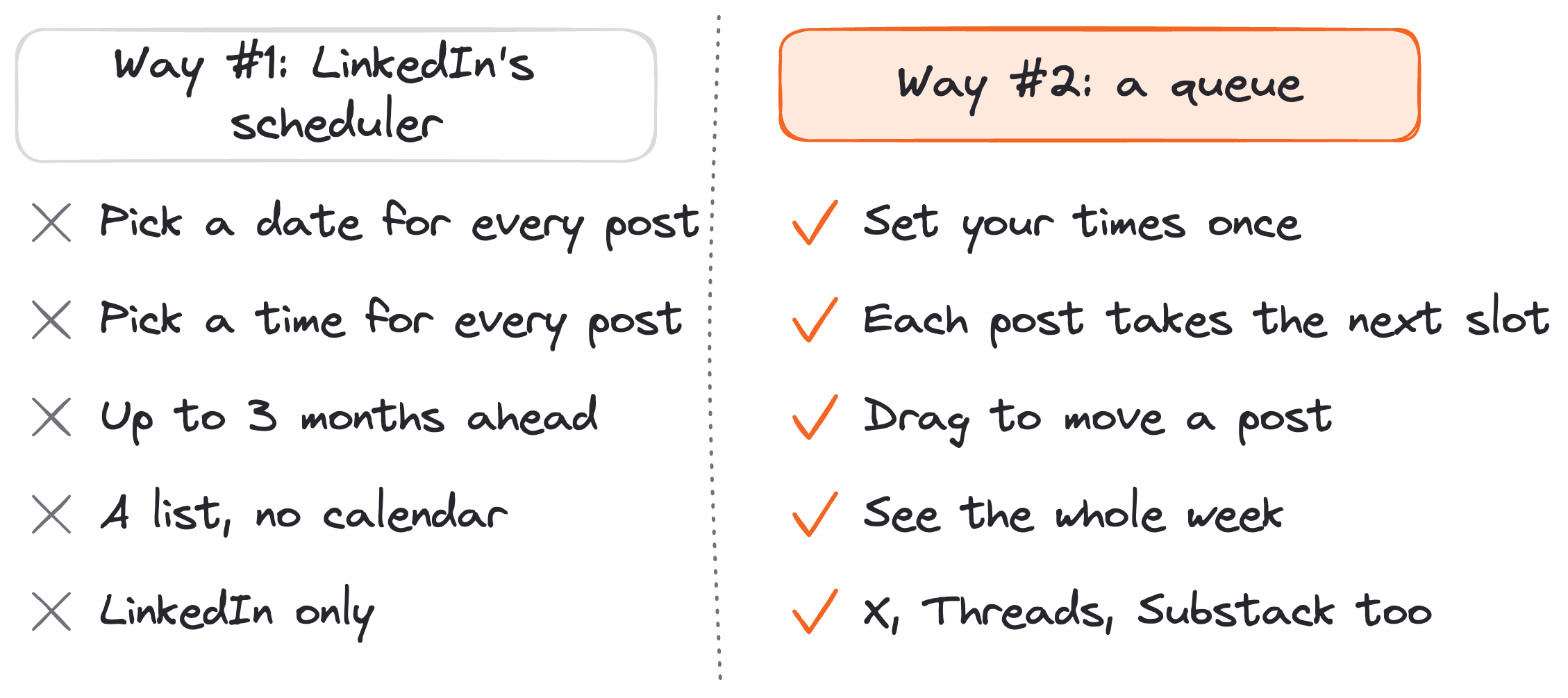
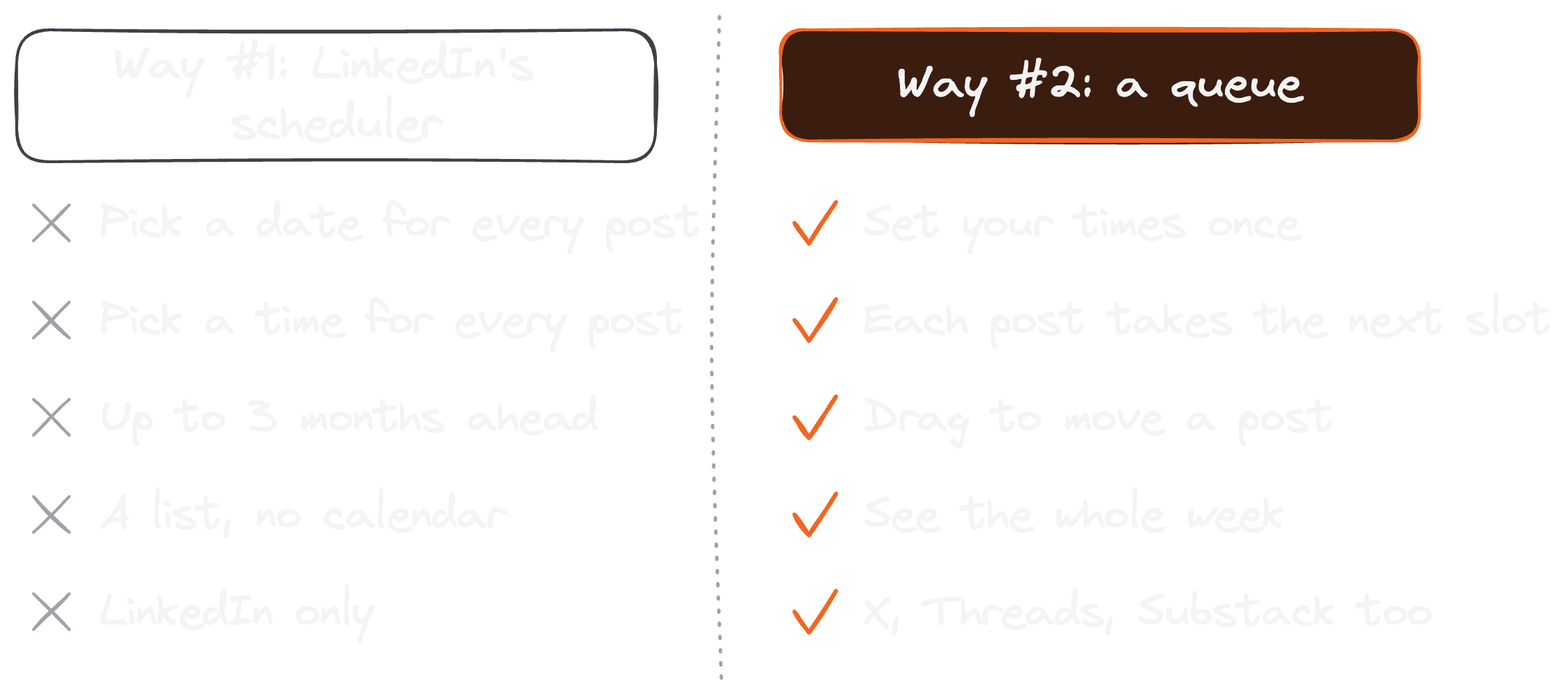
So can you schedule posts on LinkedIn? Yes, in 2 ways, and the right one depends on how often you post.
Way #1: How To Schedule A Post On LinkedIn On Desktop
Scheduling a single post on LinkedIn takes about 30 seconds once you know where the clock is.
Here's how to schedule a post on LinkedIn from your computer, step by step, as LinkedIn's Help Center describes it:
- Click "Start a post" at the top of your LinkedIn homepage.
- Write your post. Add your text, plus any photo, video or document you want on it.
- Click the clock icon in the lower-right corner of the composer, next to the Post button.
- Pick a date and a time. You can choose from the 30-minute options or type an exact time.
- Click "Next." You go back to your post, with the scheduled time shown above it.
- Click "Schedule." A confirmation appears in the lower-left corner of the page.
That's it. LinkedIn holds the post and publishes it at the time you picked.
Three rules decide what time you can pick. The time has to be at least 10 minutes from now and no more than 3 months out. LinkedIn also converts your time to UTC based on your device's time zone, so a post scheduled on a laptop set to the wrong zone goes out at the wrong hour. (If you travel, check the zone before you schedule.)
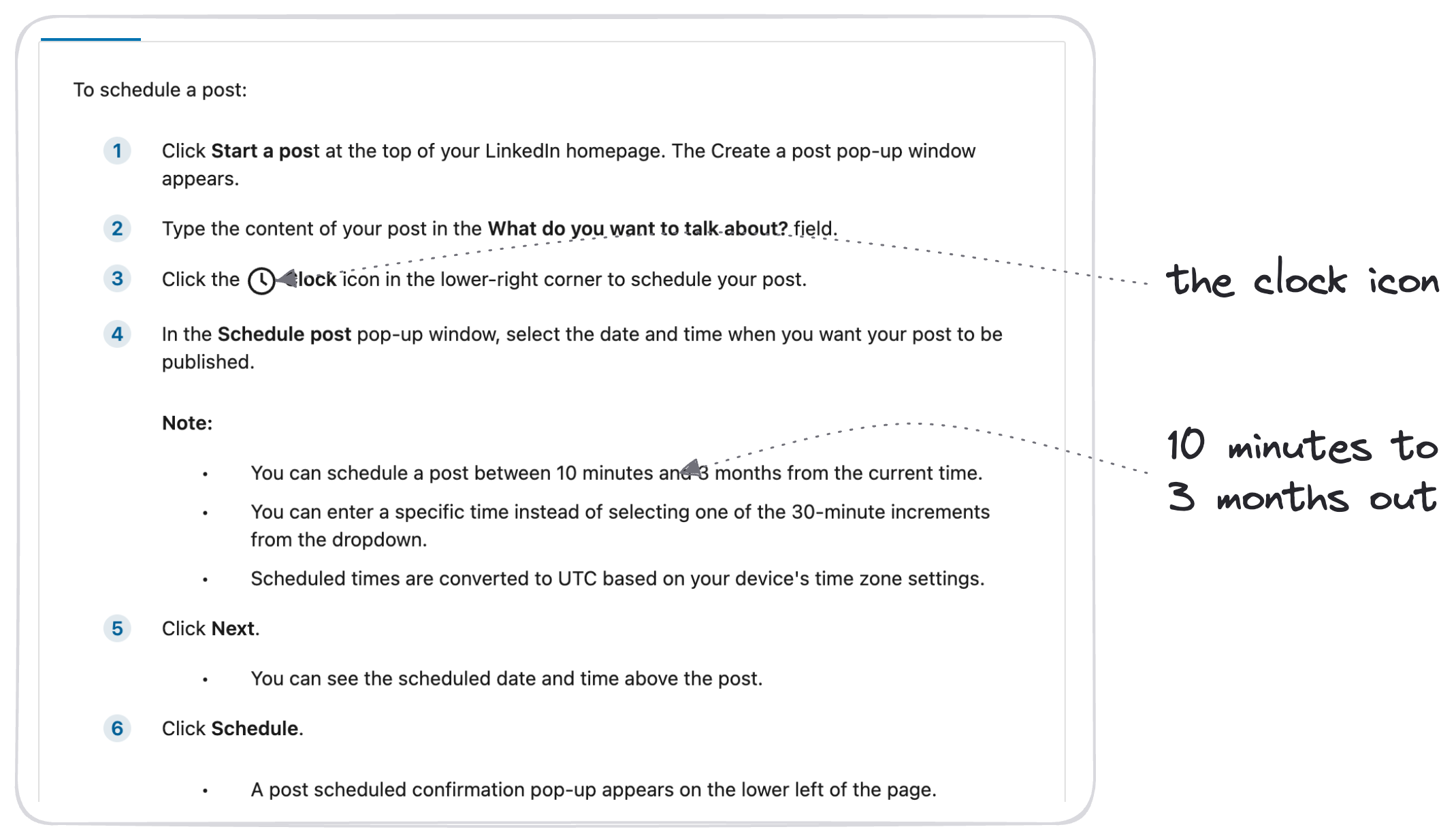
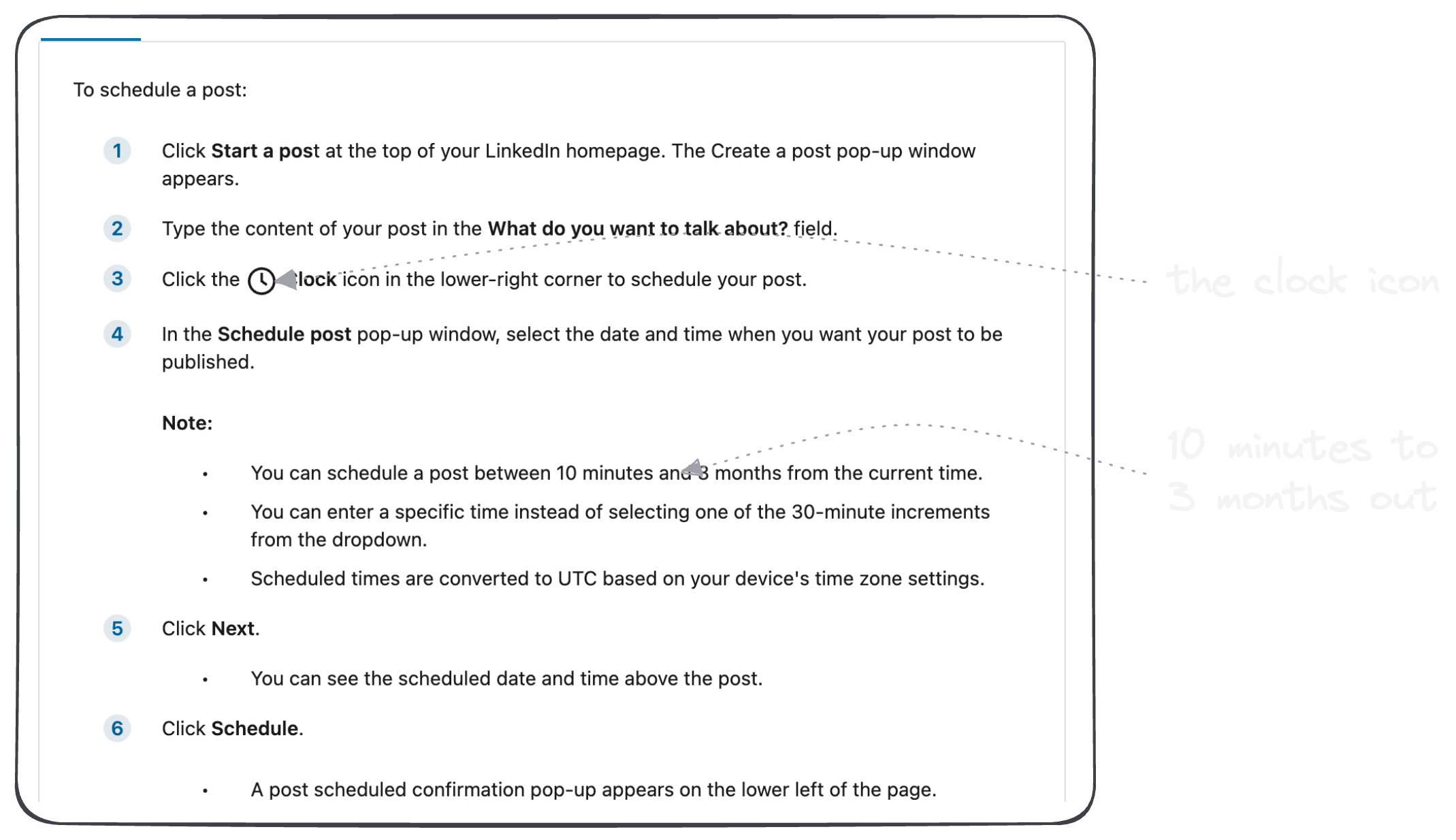
That's how to schedule a post on LinkedIn on desktop: write it, click the clock and pick your morning.
Way #1 On Your Phone: How To Schedule LinkedIn Posts On Mobile
What if your best ideas show up on your phone?
I tell people to leave their phone at home more often, because that's when the creative energy shows up. But when an idea lands while your phone is in your pocket, get it down and scheduled before you lose it. LinkedIn's app has the same scheduler as the desktop, with the clock moved to the top of the screen.
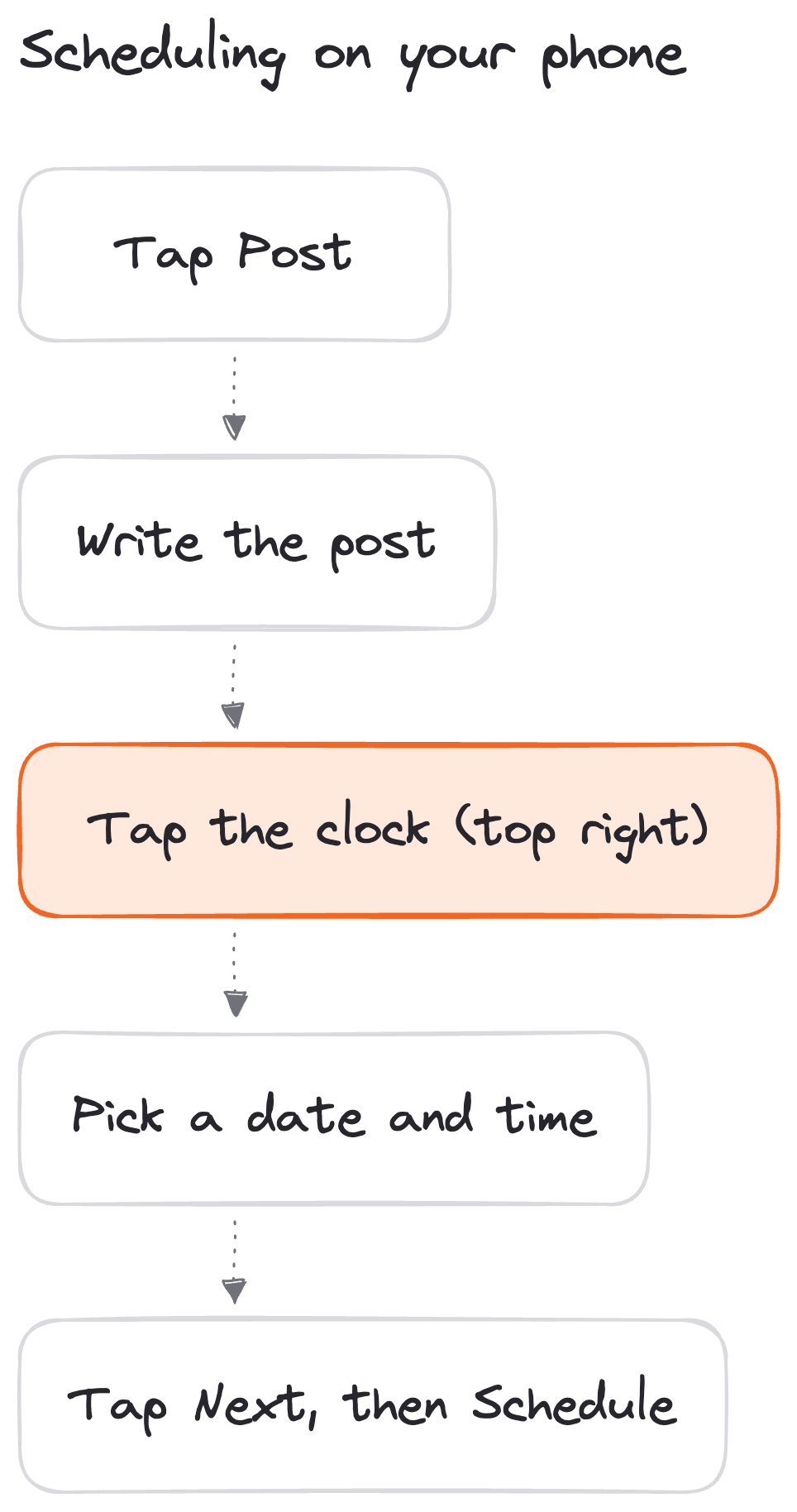
Here's how to schedule LinkedIn posts on mobile, from LinkedIn's Help Center:
- Tap "Post" in the navigation bar at the bottom of the app.
- Write your post and add any media.
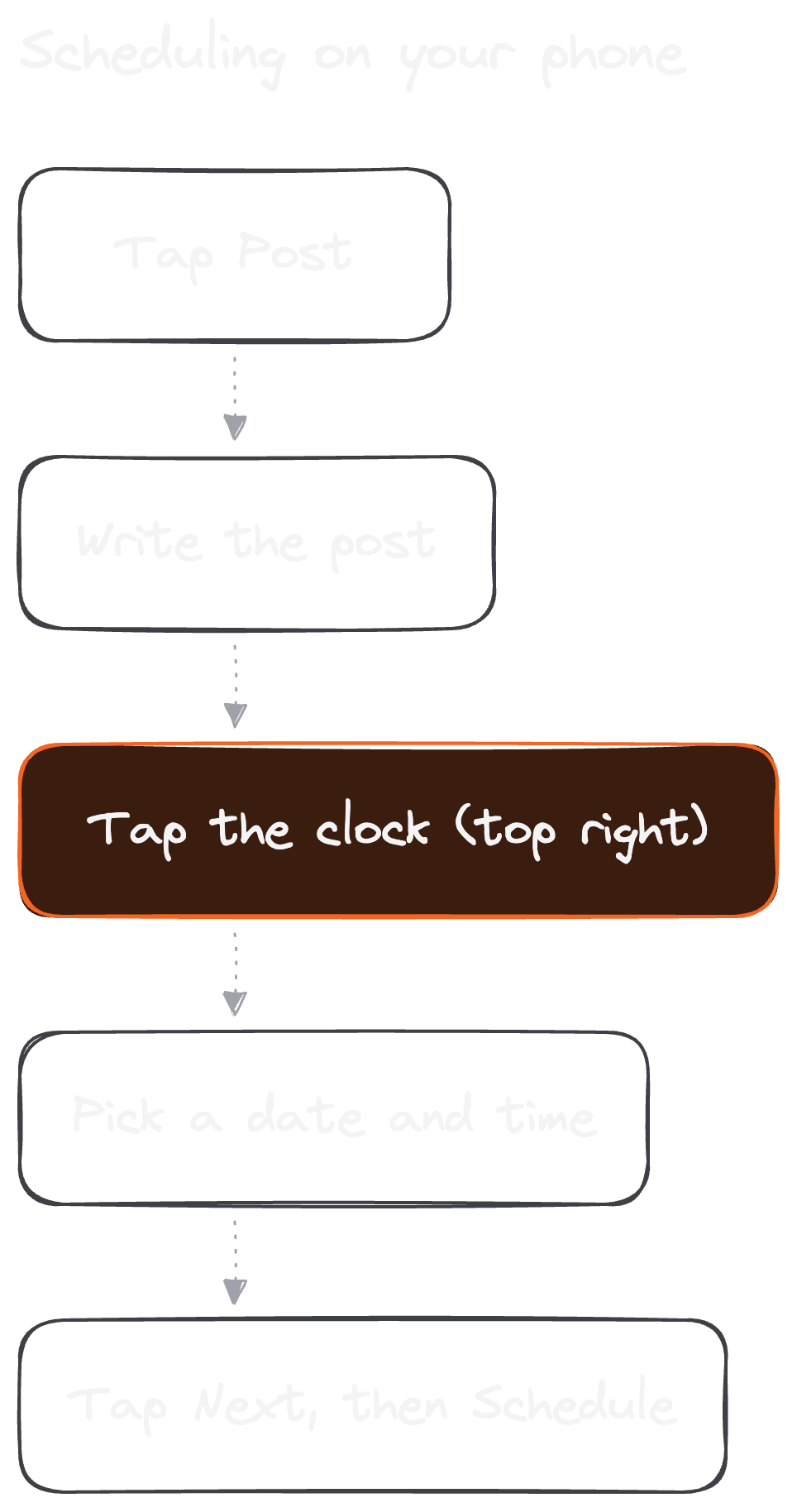
- Tap the clock icon in the upper-right corner.
- Pick a date and time.
- Tap "Next," then "Schedule."
The rules are the same as on desktop: 10 minutes to 3 months out, converted from your phone's time zone. So check that your phone's zone matches the mornings you're aiming for, especially after a trip.
One tip from experience: write the post on your phone, but read it once on a bigger screen before it goes out. LinkedIn cuts long posts off behind "…see more," and where that cut lands is easier to judge when you can see the whole post at once.
That's how to schedule LinkedIn posts on mobile: same clock, same rules, top of the screen.
Way #1 After You Schedule: How To See Scheduled Posts On LinkedIn
Scheduling the post is half the job; the other half is finding it again.
Plans change. You spot a typo, a news story makes Thursday's post look tone-deaf, or you want Wednesday's post to go out Monday instead. LinkedIn keeps every post you've scheduled in one list, but the list is hidden behind the same clock icon you used to schedule it.
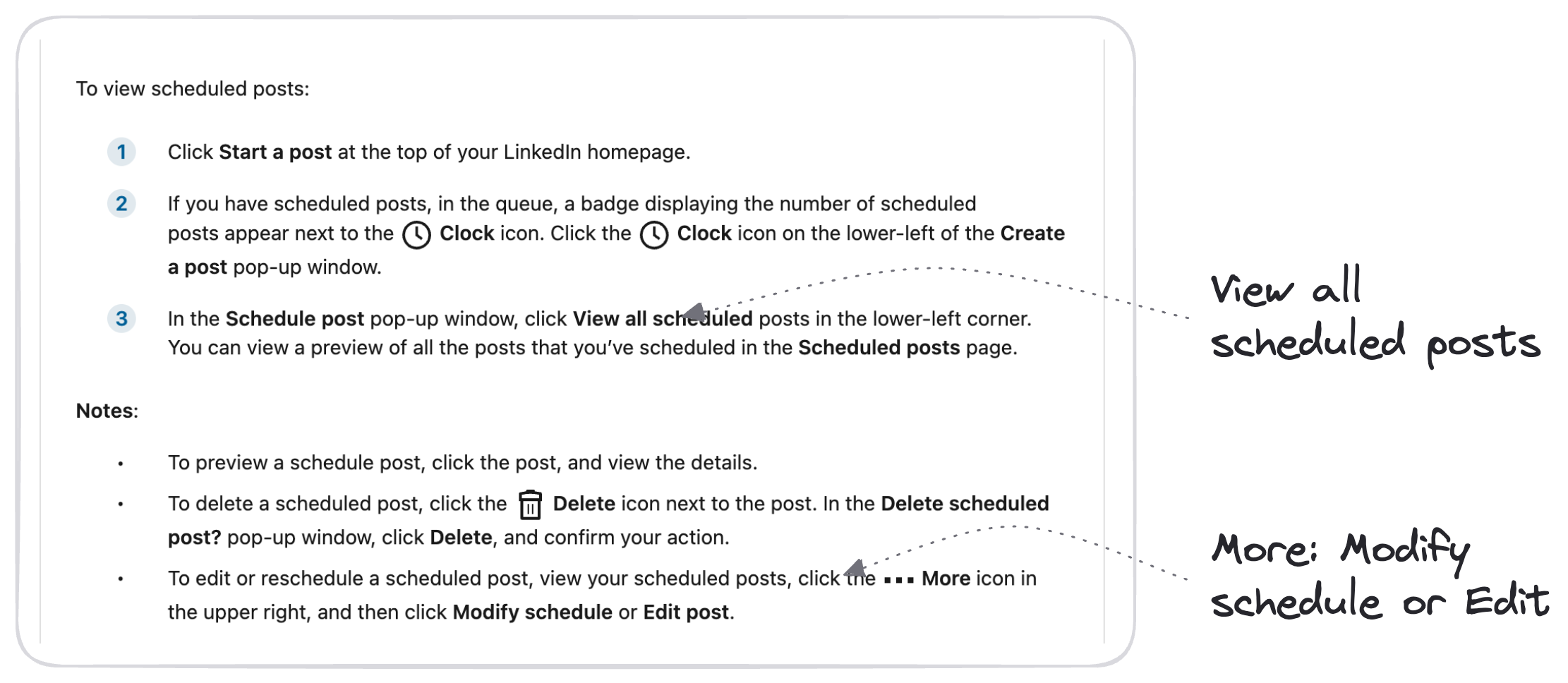
Here's how to see scheduled posts on LinkedIn, and what you can do from there (LinkedIn's Help Center):
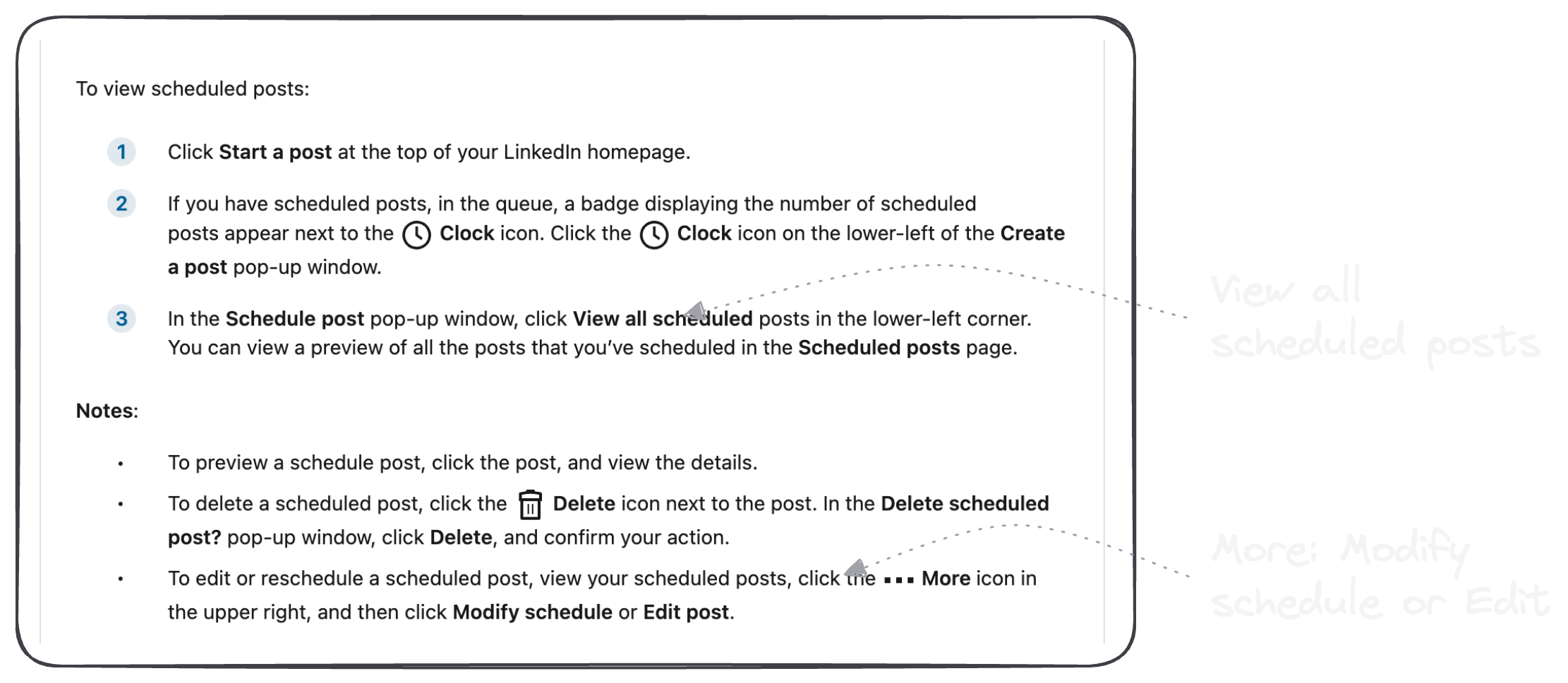
- See them all: start a post, click the clock icon (a small badge shows how many posts are waiting), then click "View all scheduled posts." On mobile, tap Post, the clock icon, then "View all."
- Edit a post: open the More menu on the post and choose "Edit post."
- Reschedule it: open the More menu and choose "Modify schedule," then pick a new date and time.
- Post it now instead: click "Edit" next to the scheduled time, then "Clear time." You can then post it right away or discard it.
- Delete it: click the delete icon next to the post and confirm.
Notice what's missing: a calendar. LinkedIn shows your scheduled posts as a list, so spotting the gap on Friday means reading every date. When you're planning a week, you want to see the week, and that's what Way #2 gives you.
That's how to see scheduled posts on LinkedIn: the clock icon, then "View all."
Way #1 For Your Business: How To Schedule Posts On A LinkedIn Company Page
Company pages get the same scheduler, with a few extra rules.
If you post for your business as well as for yourself, you'll schedule from the page's admin view instead of your homepage. According to LinkedIn's Help Center, only a page's super admins and content admins can schedule posts. Here's how to schedule posts on a LinkedIn company page:
- Open your page's admin view.
- Click "Page posts" in the left menu.
- Click "Start a post."
- Click the scheduling icon in the lower-right corner.
- Pick a date and time, then click "Next."
- Finish your post and click "Schedule."
On mobile, it's Dashboard, then Page posts, then Post, with the scheduling icon in the upper-right corner. To change a scheduled page post later, open the scheduling icon again, click "View all scheduled posts," then More and "Modify schedule".
The rules are stricter than on your profile in two ways:
- The time window starts later. A page post has to be at least 1 hour out (up to 3 months ahead), where a profile post only needs 10 minutes.
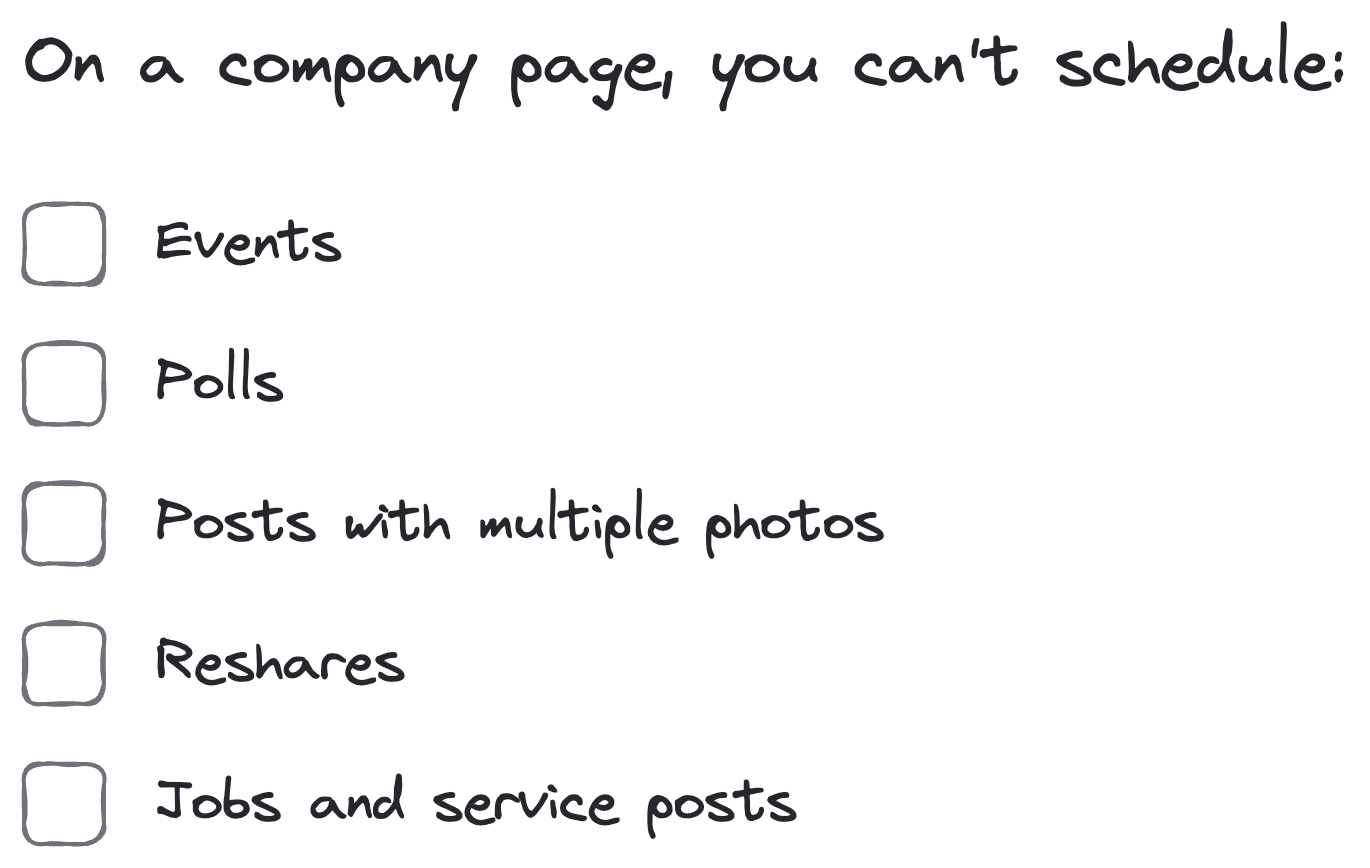
- Some post types can't be scheduled. Events, multiple photos, reshares, polls, jobs and service posts all have to go out live.
So if your company page runs a poll every Friday, someone still has to be there on Friday to post it.
That's how to schedule posts on a LinkedIn company page: from the admin view, at least an hour out.
Way #2: Why A Queue Beats LinkedIn's Built-In Post Scheduling
Here's an unpopular opinion: LinkedIn's scheduler is fine for one post and clumsy for thirty.
LinkedIn's post scheduling works one post at a time. You pick every date and every time by hand, you can only look 3 months ahead, and your scheduled posts sit in a list with no calendar view. If you also post on X, Threads or Substack, each one needs its own scheduling session.
A queue flips it around. You set your posting times once, and every post fills the next open one. This is how Typeshare's LinkedIn queue works (from our scheduling help):
- Pick your times once. On the Schedule page, click "Edit times" and start from a preset. LinkedIn's are Beginner (Monday, Tuesday and Thursday mornings), Standard (every morning) and Push (every morning and afternoon), or add your own times.
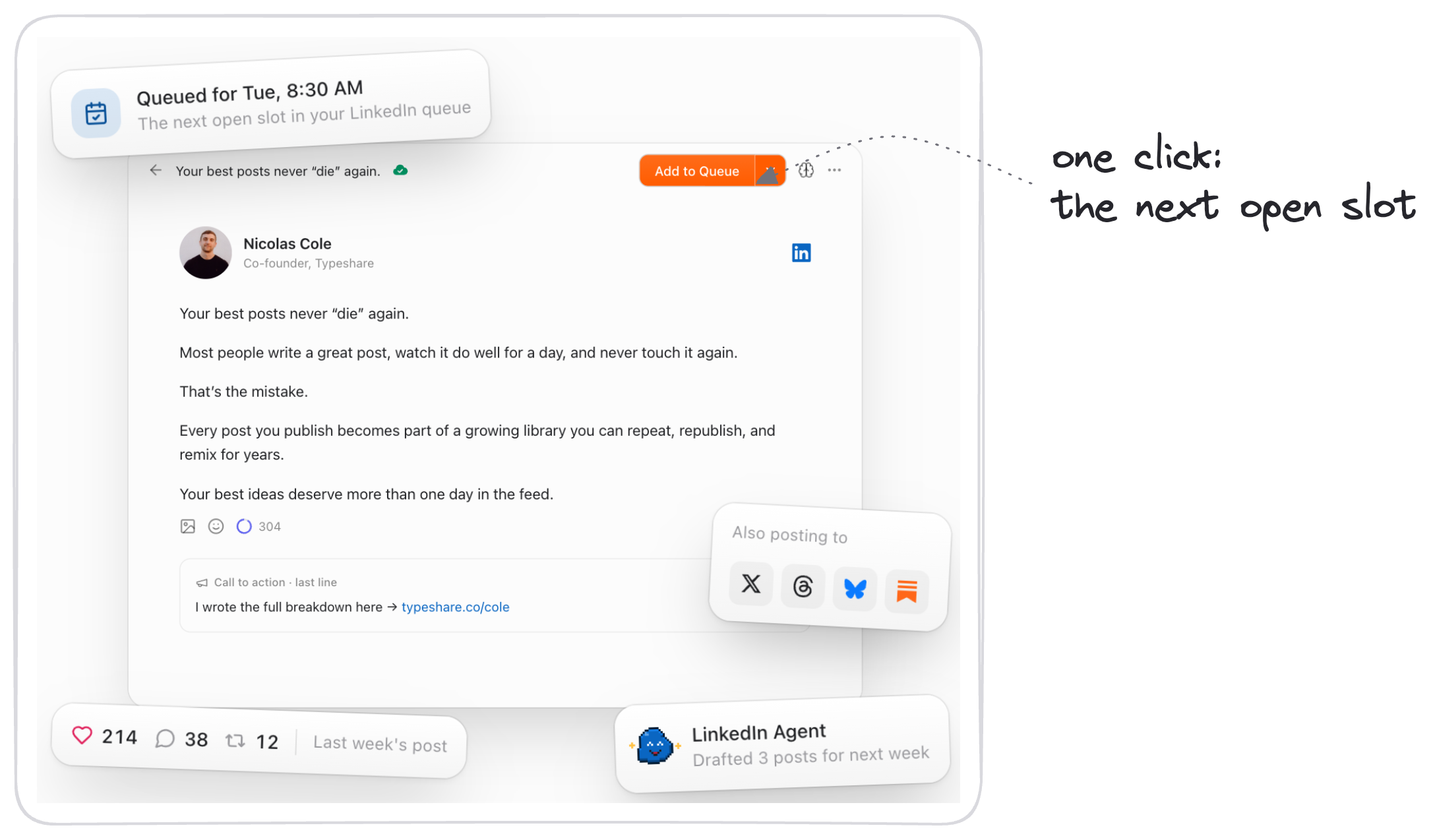
- Write, then click "Add to Queue." The post takes the next open slot. No date picker.
- See the whole week. The Schedule page shows every post on a week or month calendar, with empty slots as dashed boxes, so a missing Friday stands out.
- Move a post by dragging it. Drag it to a new day or time on the calendar.
- Natural times. Each slot goes out within 30 minutes either side of its time, at a different minute each day, so your posts don't look scheduled.
- One post, every platform. A post going to LinkedIn and X takes the first time that's free on both.
You can still pick an exact time for any single post with "Schedule for later."
LinkedIn post scheduling gets one post out; a queue gets one out every morning.
How To Schedule A Week Of LinkedIn Posts In One Sitting
I spent years trying (and failing) to build a daily writing habit, and a full week of posts written ahead is the easiest way I know to keep one.
Every Sunday, I sit down for a planning session and put the week's staples on the calendar, because the things I don't schedule in advance don't get done. Posting works the same way. My business partner Cole has had his own version of that session every Saturday for 10+ years: laptop, double espresso, locked in.
Here's how to schedule a week of LinkedIn posts in one sitting:
- Block 2 hours on the same day every week. I call these Sacred Hours: unreachable, distraction-free, just you and the work. Pick a day you can protect from meetings.
- Pick 7 ideas before you write a word. Look at what got the most comments last week, then write down seven related ideas. Writing goes faster when you're not also choosing.
- Mix your formats. Our LinkedIn posts are either educational carousels or long-form posts with a piece of media attached, 7 a week. (Here's how to make a LinkedIn carousel.)
- Write all 7 first drafts in a row. Don't stop to polish. Momentum is the point of batching.
- Edit the hooks last. The first line decides whether anyone clicks "…see more," so give every hook a second pass.
- Queue them in order. Add each to the queue and they fill Monday through Sunday at your morning time.
- Leave a slot open for what happens this week. A reaction to the news or an idea from Tuesday's walk can go in it.
Don't push the volume past one or two a day. As Cole puts it, "On LinkedIn, if you post more than 2x per day the algo works against you."
LinkedIn has also been the platform that brings me the most net-new newsletter subscribers for about 3 years.


Schedule a week of LinkedIn posts in one sitting, and every morning that week is already done.
FAQ
Can you schedule a LinkedIn post more than 3 months ahead?
Not with LinkedIn's own scheduler. LinkedIn's Help Center caps it at 3 months from now, and a post has to be at least 10 minutes out (1 hour for a company page).
Can I schedule LinkedIn posts for free?
Yes. LinkedIn's scheduler is free and built into the post composer, on desktop and in the app. You click the clock icon in the post composer and pick a date and time.
How often should you post on LinkedIn?
Once a day is plenty, and it's what I do. Cole's rule is to stay at 2 posts a day or fewer, because more than that works against you. If daily is too much to start, post 3 mornings a week and build up.
What is the best time to post on LinkedIn?
The morning in your readers' time zone is a good start: Cole's advice is 9 AM your time, and Typeshare's LinkedIn queue starts at 8 AM. Then post at that same time every day, so your readers learn when to expect you. (For what three big studies found, and a 4-week test to find your own slot, see the best time to post on LinkedIn.)
Can you schedule LinkedIn posts on weekends?
Yes. Both ways work on any day of the week. Some people skip weekends; we post anyway.
Can you schedule a carousel on LinkedIn?
On your profile, LinkedIn's scheduler only rules out events and jobs, so a carousel goes through the same clock icon as any other post. In Typeshare, you can make a LinkedIn carousel and add it to your queue the same way.
Can I schedule LinkedIn events, polls or reshares?
No. LinkedIn doesn't let you schedule events or jobs. On company pages, polls, reshares, posts with multiple photos and service posts can't be scheduled either.